LinkedIn Video Downloader

Paste the link of a public LinkedIn post with a video and save it as MP4, or just the audio as MP3. Great for webinars, talks and tutorials.

Free · No sign-up · No app to install · Works on Android, iPhone and PC

Checking the video, one moment…
Step by step

How to download a LinkedIn video

  1. 1

    Copy the post link

    On the post with the video, tap the three dots or Share and choose Copy link to post.

  2. 2

    Paste it into the downloader

    Paste the link in the box above and tap Download.

  3. 3

    Save the video

    Tap Download HD for the best quality, Download for a light version or Download MP3 for the audio.

Features

LinkedIn videos to watch whenever you want

  • Talks and webinars

    Save conference talks, classes and presentations to watch offline.

  • Your own videos

    Get back the videos you posted so you can reuse them on other networks or in your portfolio.

  • MP3 audio

    Listen to a talk or interview like a podcast.

  • HD quality

    We download the best available quality of the original video.

  • No login

    We never ask for your LinkedIn account. It works with public posts.

  • Free

    No sign-up and no software.

Download videos from LinkedIn posts

LinkedIn is full of talks, interviews, tutorials and presentations from companies and professionals. Often you want to keep one of those videos to watch properly later, share with your team or get back a video you posted yourself. LinkedIn has no download button, but with DescargarVideo all you need is the post link.
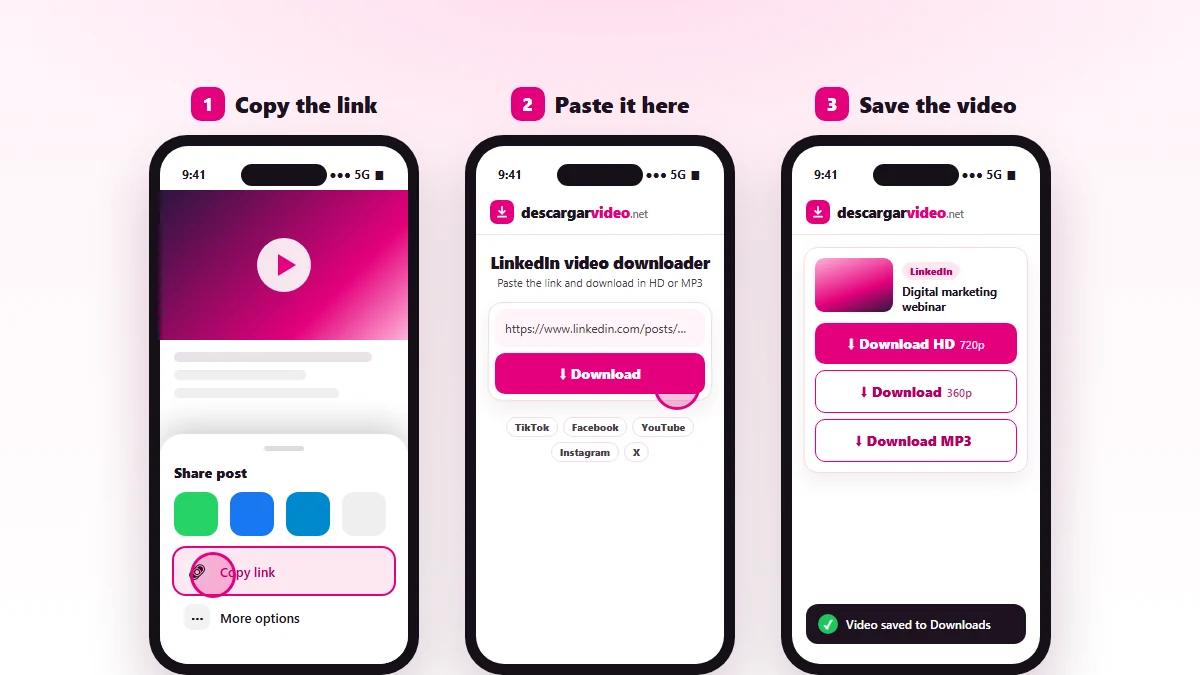
How to download LinkedIn videos: copy the post link, paste it into DescargarVideo and download in HD
Copy the LinkedIn post link, paste it and download the video.

How to download LinkedIn videos on your phone

  1. Open the post with the video in the LinkedIn app.
  2. Tap Share and choose Copy link.
  3. Open en.descargarvideo.net/linkedin-video-downloader/ in your browser and paste the link.
  4. Tap Download, then Download HD.

How to download LinkedIn videos on a computer

On linkedin.com, click the three dots on the post and choose Copy link to post. Paste the link into the downloader and click Download HD. The video is saved as MP4 in your Downloads folder.

Why download LinkedIn videos

  • Keep a webinar or talk to watch without interruptions.
  • Recover your own videos to upload them to YouTube or your website.
  • Listen to an interview as MP3 while driving or working out.
  • Share an internal video with your team when not everyone uses LinkedIn.

If a LinkedIn video will not download

  • The post is visible only to connections or group members.
  • The link is for a profile or an article with no video.
  • The video is part of LinkedIn Learning, which is paid content.

Need to download from other networks? The main video downloader works with TikTok, Facebook, YouTube, Instagram and more.

Responsible use

LinkedIn videos belong to the people and companies who post them. Download them for personal or internal professional use, and ask permission before reposting. If you are a rights holder, see our DMCA policy.

Last updated: November 13, 2026

Common questions

Frequently asked questions

How do I download a LinkedIn video?
Copy the link of the post with the video, paste it on this page and tap Download HD. The video is saved to your device as MP4.
How do I copy the link to a LinkedIn post?
Tap the three dots on the post and choose Copy link to post. In the app you can also use Share → Copy link.
Can I download videos from private posts?
No. Only public posts that are visible without logging in will work.
Can I download LinkedIn Learning courses?
No. LinkedIn Learning courses are paid content and cannot be downloaded with this tool.
Can I convert a LinkedIn video to MP3?
Yes. Paste the link and tap Download MP3 to keep only the audio.
Does it work on my phone?
Yes, on Android and iPhone in the browser.